|
FilmStar runs under Win XP/Vista/7-11, but
adjustments may be required, especially if installing old versions.
MEASURE versions work
with 64-bit Windows with the exception that Mpe19AX
requires 32-bit Windows.
Please contact FTG Software
about any issues and solutions not discussed below.
1. PASSWORDS DON'T WORK or NEW VERSION
NOT INSTALLED...If setup32.exe is already in your Downloads directory
your new download will be renamed setup32(1).exe. This has stumped several
users.
2. SUDDEN QUIT...If you get
the
Unexpected error; quitting error message or
if the program quits without error message, right click
the program's icon and select 'Run as
administrator'. The next time
the program should run normally. Repeat for each FilmStar/Scantraq
program. You may need to contact IT
to Run as adminstrator.
4. XP COMPATIBILITY...Should
installation still fail, try Setup32.exe with XP compatibility. Right-click setup32.exe and adjust as shown.
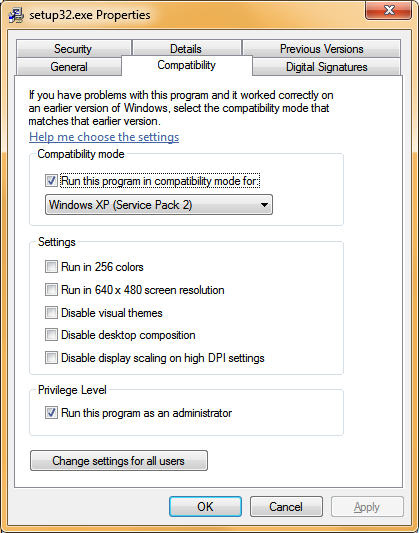
Note the Digital Signatures tab. If its
missing you have
an older unsigned version which may be problematic.
Click here
if you get Error: You do not have access to make the required
system configuration modifications. Google any other error messages.
5. SECURITY...Worried about viruses hidden in
bogus FTG Software EXE files or an Attention
required notice when installing software? You might want to
verify that downloaded files are genuine.
|
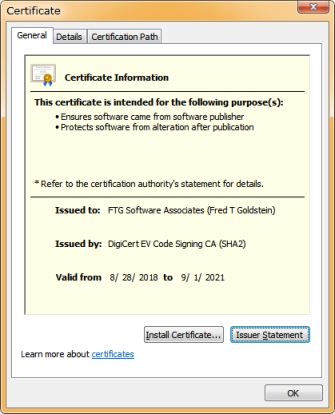
In Explorer, right click File Name...Properties...Digital Signatures...FTG Software... Details...Certificate...Details...View Certificate. ('Valid from' refers to Certificate signing and
does not mean that older software expires.)
Please advise FTG
about any issues. |
 |
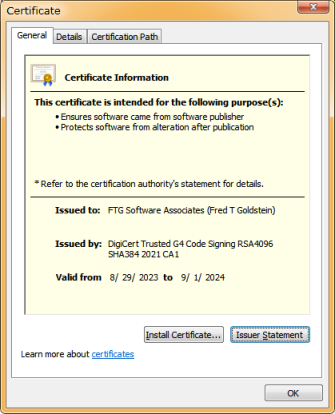
Current Certificate
A Previous Certificate
6. USB LICENSE KEY DOESN'T WORK...Setup32.exe
and Setup32B.exe
include a built-in HASP USB License Key driver, but it occasionally fails. Should it get stuck at installing the driver,
re-run the installer, select NO in the Install USB License Key dialog and
follow the instructions below.
It is also possible that there is no error message but the driver failed to
install (LED
unlit when key inserted).
Note added 09 Feb 2022: We had reports of new USB License Key failures
wherein the LED is lit but not recognized. The issue has been addressed and
Setup32.exe updated, but if you already installed the failed HASP driver you
might need to remove and re-install. Download
haspdinst.exe and
copy to C:\. Open Command Prompt as Administrator and do as follows:

There is no need for the first command line (-purge) if the
key was never installed.
Unfamiliar with Command Prompt? Download and
run LicenseKey.exe.
Contact your IT department or FTG Software if you
require assistance. Please keep us informed about any further USB License Key
issues. A previous link to a standalone HASP installer has been deleted
because it does not install a required component.
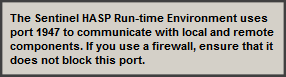
7. INDEPENDENT LICENSE KEY TEST...http://localhost:1947/_int_/devices.html.

|
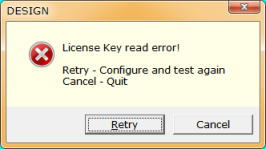
If the key seems OK (blink test) but the error message at the right pops-up, click
<Retry> followed by <License Information>. This displays and copies
license settings to the Windows Clipboard. Paste into an
e-mail to
FTG Software.
Note:
Key ID is the decimal value of hex Module ID displayed in
the License Information window.
Click
here for an online converter. |
 |
8. FilmStar/Scantraq MIX-UP... You want to install FilmStar but, after
mistakenly specifying Scantraq can only install Scantraq (or vice-versa). The
fix: run RegEdit (Registry Editor) and delete the FTG Software key as follows...
32-bit Windows:
HKEY_LOCAL_MACHINE\SOFTWARE\FTG Software
64-bit Windows: HKEY_LOCAL_MACHINE\SOFTWARE\Wow6432Node\FTG Software
Now reinstall the version you require. Reluctant
or can't run RegEdit? Contact IT.
9. MEASURE Test Mode... MEASURE is initially configured with Test Mode
ON. Turn OFF in File.. Configuration.. Preferences. Test Mode makes it
possible to develop and test BASIC macros without having to perform actual
scans.
10. OLE32.DLL ERROR resulting from INVALID PATH...We obtained a
misleading message when attempting
to install to Winfilm rather than C:\Winfilm. Since the path was
invalid nothing was actually installed.
11. POSSIBLE MESSAGE... In
reponse to This program might not have installed correctly we found no
problem after clicking This program installed correctly.
12. UNUSUAL PROBLEM...Contact
your IT department
13. FONT INSTALLATION PROBLEM...Lucida Sans Typewriter
is the default fixed font for editors, numeric grids, etc. If not found in ..\Windows\Fonts it will be added. If the Fonts directory is not writable
contact IT to enable writing and re-run setup32.exe. Alternatively, fonts can be
downloaded here.
14. UNIMPORTANT PROBLEM...Vista/Win
7 omit
the WinHlp32.exe viewer for *.hlp help files. This is no problem because FilmStar
uses HTML help. There is one place, however, where WinHlp32 is accessed:
pressing the '?' icon in the BASIC UserDialog editor. You will probably never do
this, but just in case here is what happens: On accessing WinHlp32 for the
first time you arrive at a
Microsoft site informing you that the help is obsolete, but they'll let you view
it anyway. We've uploaded Microsoft's help installers for your
convenience:
32-bit help installer,
64-bit help installer for newer computers. If you download from the Microsoft site, note that
'64' indicates the 64-bit installer and '86' the 32-bit installer.
|
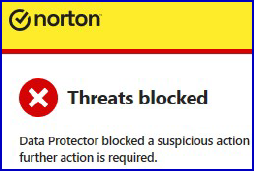
 and search for "Data Protector" in
your My Norton screen.
Users may require the assistance of IT personnel.
and search for "Data Protector" in
your My Norton screen.
Users may require the assistance of IT personnel.